

Accessibility
Accessibility
Florida A&M University is committed to providing an inclusive digital experience for all users, including individuals with disabilities. The University strives to ensure that its websites, web content, digital documents, and mobile applications are accessible, usable, and aligned with current accessibility standards.
What is Web Accessibility?
Web accessibility is the practice of designing and maintaining digital content so
that people with disabilities can perceive, understand, navigate, and interact with
online information and services. Accessible content improves usability for all users
and helps ensure equal access to University programs, resources, and services.
Florida A&M University Accessibility Commitment
Florida A&M University is committed to creating digital experiences that are:
- Perceivable — Information and user interface components must be presented in ways users can recognize and access.
- Operable — Navigation and interface components must be usable by all users, including those who rely on keyboard-only navigation.
- Understandable — Information and functionality must be clear, consistent, and predictable.
- Robust — Content must be compatible with current and future browsers, devices, and assistive technologies.
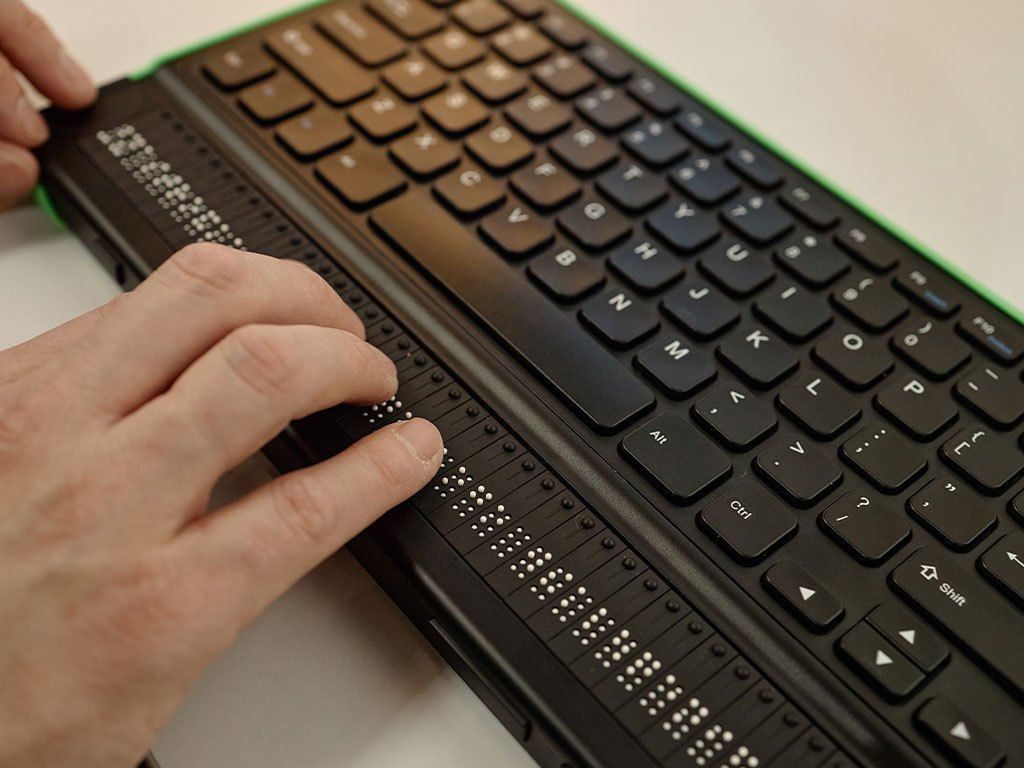
The University works to support compatibility with assistive technologies such as
screen readers, keyboard navigation tools, speech recognition software, captioning
services, and text enlargement tools.
Accessibility Standards and Requirements
Florida A&M University uses the Web Content Accessibility Guidelines (WCAG) 2.1 Level AA as the primary standard for digital accessibility. These internationally recognized guidelines establish technical requirements for accessible websites, applications, and digital content.
The University’s accessibility efforts are also guided by applicable federal laws and regulations, including:
- Americans with Disabilities Act (ADA), Title II
- Section 504 of the Rehabilitation Act of 1973
- Section 508 of the Rehabilitation Act
Important Legal Update for Public Universities
The U.S. Department of Justice (DOJ) issued a Title II rule requiring public entities serving populations of 50,000 or more to ensure that covered web content and mobile applications comply with WCAG 2.1 Level AA, subject to limited exceptions.
For institutions such as Florida A&M University, the DOJ has extended the compliance deadline to April 26, 2027. This extension changes only the implementation timeline and does not alter the accessibility requirements established by the rule.
Digital Content and Media Accessibility
All digital documents and media published on Florida A&M University websites should be reviewed for accessibility before publication. This includes:
- PDFs and downloadable documents
- Word, Excel, and PowerPoint files
- Images, charts, graphics, and other non-text content
- Audio and video content
- Online forms
- Web and mobile applications
- Third-party platforms and services used to provide University information or services
Accessible digital content helps ensure that students, employees, visitors, and community members can access important information without unnecessary barriers.
Report an Accessibility Issue
If you experience difficulty accessing content on a Florida A&M University website or digital platform, please report the issue to the appropriate University office or website owner.
When reporting an issue, please include:
- The webpage or document URL
- A description of the accessibility issue encountered
- The browser or assistive technology used, if applicable
- Your contact information for follow-up, if desired
Florida A&M University will make reasonable efforts to address reported accessibility barriers and provide information in an alternate format when necessary.
WCAG 2.1 Level AA – Quick Reference
This guide summarises the most important accessibility requirements for website content under WCAG 2.1 Level AA. It covers web pages, downloadable documents, media, and social content. For the full standard, visit w3.org/WAI/WCAG21/quickref.
Images & Non-Text Content
- Provide descriptive alt text for all meaningful images.
- Describe complex visuals (charts, infographics) in surrounding text or a linked long description.
Color & Contrast
- Normal text: minimum 4.5:1 contrast ratio against its background.
- Large text (18pt+ or 14pt bold): minimum 3:1 contrast ratio.
- Never use color as the only way to convey information (e.g., error states, required fields).
- FAMU Accessible Orange: #CC4E00
- FAMU Accessible Green: #1B5633
Headings & Page Structure
- Use a logical heading hierarchy (H1 → H2 → H3); never skip levels.
- Use only one H1 per page to identify the main topic (the header section of our website contains the H1 header)
- Use HTML landmark regions (
<main>,<nav>,<header>,<footer>) to aid navigation (the CMS already does this).
Links
- Write descriptive link text — avoid "click here" or "read more".
- Links that open in a new window or tab must warn users in the link text or via
aria-label. (the CMS already does this) - Distinguish visited and unvisited links visually. (the CMS already does this)
Keyboard & Focus*
- All functionality must be operable with a keyboard alone.
- A visible focus indicator must always be present when tabbing through the page.
- No keyboard traps — users must be able to navigate away from any component.
- Provide skip navigation links so keyboard users can bypass repetitive menus.
Forms
- Every form input must have a visible, programmatically associated
<label>. - Error messages must identify the field in error and describe how to fix it.
- Group related fields (e.g., radio buttons) with
<fieldset>and<legend>.
Tables
- Use
<th>header cells withscopeattributes for all data tables. - Provide a
<caption>or accessible summary describing the table's purpose. - Avoid using tables purely for visual layout.
Motion & Flashing
- Content must not flash more than 3 times per second (seizure risk).
- Provide a mechanism to pause, stop, or hide any auto-playing animation or moving content.
- Respect the
prefers-reduced-motionmedia query in CSS.
Page Language & Title*
- Set the
<html lang="">attribute to the correct language code (e.g.,lang="en") on every page. - Every page must have a unique, descriptive
<title>.
* Denotes items the CMS handles by default
Structure & Tagging
- PDFs must be tagged so screen readers can determine reading order and meaning.
- Use correct tag types: headings (<H1>–<H6>), paragraphs (<P>), lists (<L>, <LI>), tables (<Table>).
- Set a document Title and Language in File → Properties.
- Ensure reading order in the Tags panel matches the visual order on screen.
Images & Links
- All meaningful images must have alt text set in the tag properties.
- Decorative images must be tagged as Artifact so screen readers ignore them.
- Hyperlinks must use descriptive display text — not raw URLs.
Forms & Tables
- All form fields must have tooltip/description text and be tagged as form elements.
- Table cells must use header associations so screen readers convey column and row context.
Color & Fonts
- Minimum 4.5:1 color contrast ratio for body text.
- Embed all fonts — do not rely on font substitution.
- Avoid scanned image-only PDFs; use OCR if the source is a scan.
- FAMU Accessible Orange: #CC4E00
- FAMU Accessible Green: #1B5633
Checker Tool: PAC 2026 – Free PDF Accessibility Checker (Windows desktop app; checks WCAG 2.1 AA & PDF/UA).
Also available online: axesCheck (web-based version of PAC).
Headings & Structure
- Apply built-in Heading styles (Heading 1, Heading 2, etc.) — never fake headings by manually bolding or enlarging text.
- Use a logical heading hierarchy; do not skip levels.
- Use the built-in list styles for bulleted and numbered lists.
Images & Tables
- Right-click any image → Edit Alt Text and provide a meaningful description.
- Mark purely decorative images as decorative in the alt text panel.
- Use Insert → Table to create tables; designate header rows via Table Design → Header Row.
Links & Language
- Hyperlink descriptive text, not raw URLs (right-click → Edit Hyperlink → change display text).
- Set the document language: Review → Language → Set Proofing Language.
Color & Contrast
- Maintain at least 4.5:1 contrast between text and background colors.
- Do not use color alone to convey meaning (e.g., red text for errors).
Checker Tool: Microsoft Accessibility Checker — Review tab → Check Accessibility.
Slide Structure & Reading Order
- Use built-in slide layouts — avoid blank slides with manually placed text boxes.
- Every slide must have a unique, descriptive title (use the Title placeholder).
- Check reading order: Home → Arrange → Selection Pane; reorder objects so the title is read first.
Images & Media
- Add alt text to all images and charts: right-click → Edit Alt Text.
- Mark decorative elements as decorative in the alt text panel.
- Embedded video must have captions; embedded audio must have a transcript.
Color & Contrast
- Maintain at least 4.5:1 contrast between slide text and background.
- Do not convey meaning by color alone — add labels, patterns, or textures to distinguish data sets.
Links & Tables
- Hyperlink descriptive text — not bare URLs.
- Use Insert → Table for data tables and designate header rows.
Checker Tool: Microsoft Accessibility Checker — Review tab → Check Accessibility.
Captions
- All pre-recorded video with audio must have accurate, synchronized closed captions.
- Captions must include speaker identification and significant non-speech sounds (e.g., [applause]).
- Auto-generated captions (YouTube, Teams) must be reviewed and corrected before publishing.
- Live video must provide real-time captions (CART or equivalent).
Audio Description
- Pre-recorded video must include audio description for visual content not conveyed by the audio track alone.
- If the narration already fully describes all visual action, a separate audio description track may not be required.
Transcripts
- Provide a full text transcript for all audio-only content (podcasts, recordings).
- Transcripts for video should include both speech and descriptions of key visual-only content.
Media Player
- Player controls (play, pause, volume, captions toggle) must be keyboard accessible.
- Video must not auto-play with audio, or a pause/stop control must be immediately available.
- Content must not flash more than 3 times per second.
Alt Text on Social Platforms
- Add alt text to images posted on social media (all major platforms support this).
- Describe the relevant content — not "image of" or "picture of".
- For images of text, include the full text content in the alt text or post caption.
Infographics & Charts
- Include a text summary or data table alongside complex infographics.
- Ensure sufficient color contrast within charts and diagrams.
- Do not rely on color alone to distinguish data sets — use patterns, labels, or textures.
GIFs & Animations
- Avoid strobing GIFs; if used, ensure no more than 3 flashes per second.
- Provide a way to pause or stop auto-playing animated content.
Web Accessibility Resources
- WCAG 2.1 Guidelines
- W3C Web Accessibility Initiative (WAI)
- How to Meet WCAG 2.1
- ADA Title II Web and Mobile Accessibility Rule Overview
- First Steps Toward Complying with the ADA Title II Web Rule
- Section 508 Guidance and Resources
- U.S. Access Board ICT Accessibility Standards
- WebAIM Accessibility Resources
- Introduction to Web Accessibility
- WCAG Checklist
The following tools and resources can help website editors, developers, and content creators identify and resolve accessibility issues and maintain compliance with WCAG 2.1 Level AA guidelines.
- WebAIM Contrast Checker – Tests color contrast ratios between foreground and background colors.
- WAVE Browser Extensions – Evaluate web content accessibility issues directly within your browser.
- Adobe Color Contrast Analyzer – Checks whether color combinations meet accessibility contrast requirements.
- TPGI Colour Contrast Analyser (CCA) – A desktop application that helps determine if color combinations provide sufficient contrast for accessibility.
- Adobe PDF Accessibility Checker – Built-in accessibility checking tools within Adobe Acrobat.
- JAWS for Windows Screen Reader – A widely used screen reader that helps test how websites and applications are experienced by users with visual impairments.
- NVDA Screen Reader – A free, open-source screen reader for Windows used to test accessibility of web content.
- VoiceOver (Mac) Screen Reader – Apple’s built-in screen reader available on macOS and iOS devices.
Training Videos
Learn how to create accessible PDFs, PowerPoints and Excel files
How to Author and Test Microsoft PowerPoint Presentations for Accessibility
Other Florida A&M University Accessibility Resources

Student accessibility resources and accommodations information.